Meccha Chameleon Paint Tool
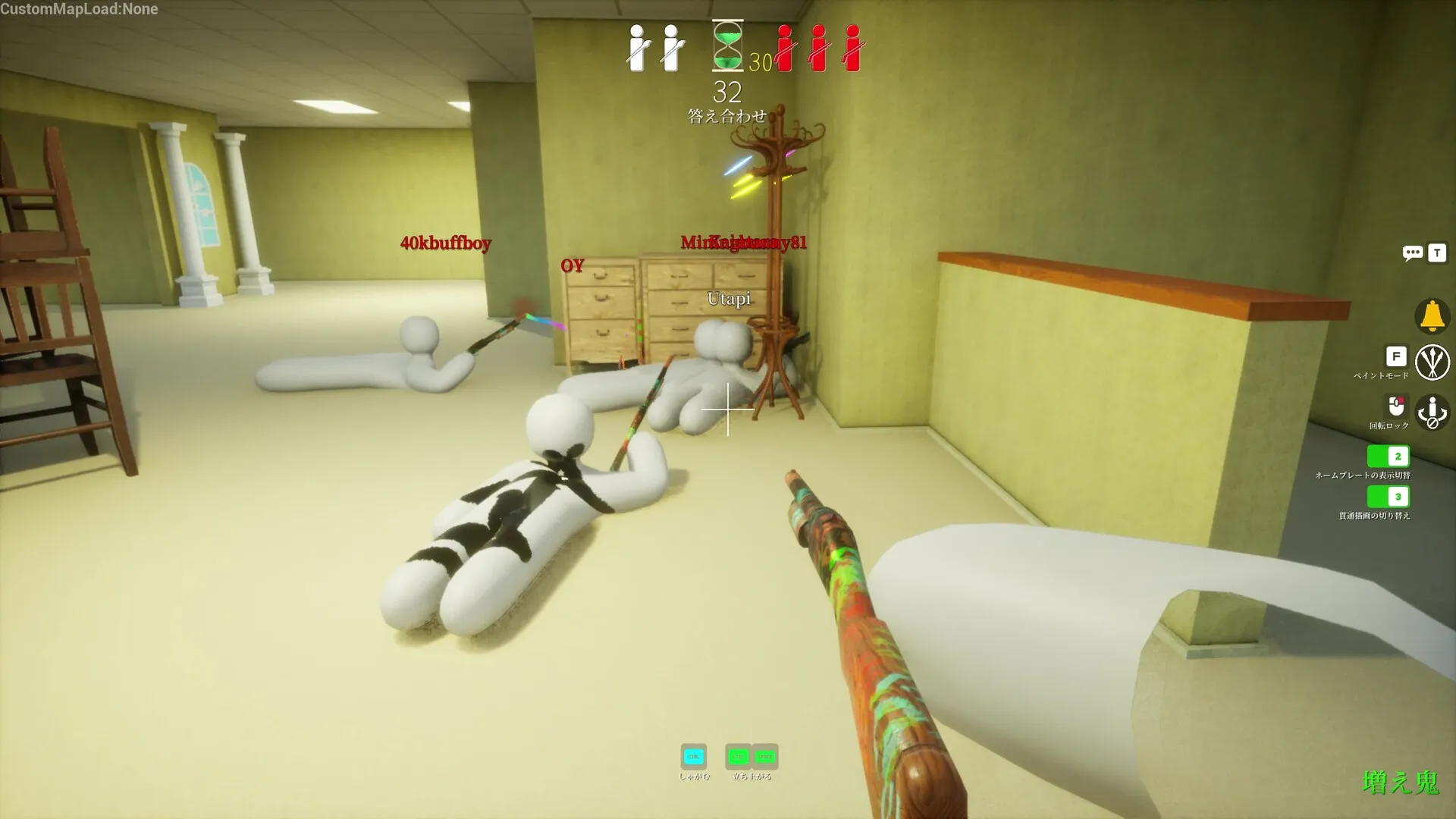
The paint tool is the game's signature mechanic: the core tool that applies colors and brush patterns to your body so you can match walls, floors, furniture and props. But a good disguise is rarely about copying one nearby object — strong Hiders read the area behind them, the surface beside them, the lighting around the prop group, and the outline their pose creates.
How it works
Open paint mode with its own key (F by default). Inside you get:
- Eyedropper (3D Spoid) — samples color directly from any surface in the level.
- HSV and RGB sliders — fine-tune the exact hue once you have a base color.
- Metallic and roughness sliders — control how glossy or matte your surface looks.
- Palette swatches and themes — store and reuse colors you have mixed.
- Camera rotation (middle mouse button) — orbit your body to paint every side.
Skill ladder
| Beginner | Match a single flat wall color | Eyedrop one nearby surface and apply it across your whole body. |
| Intermediate | Sample gradients | Sample highlight, mid-tone and shadow from the same surface so the lit and dark sides of your body read correctly. |
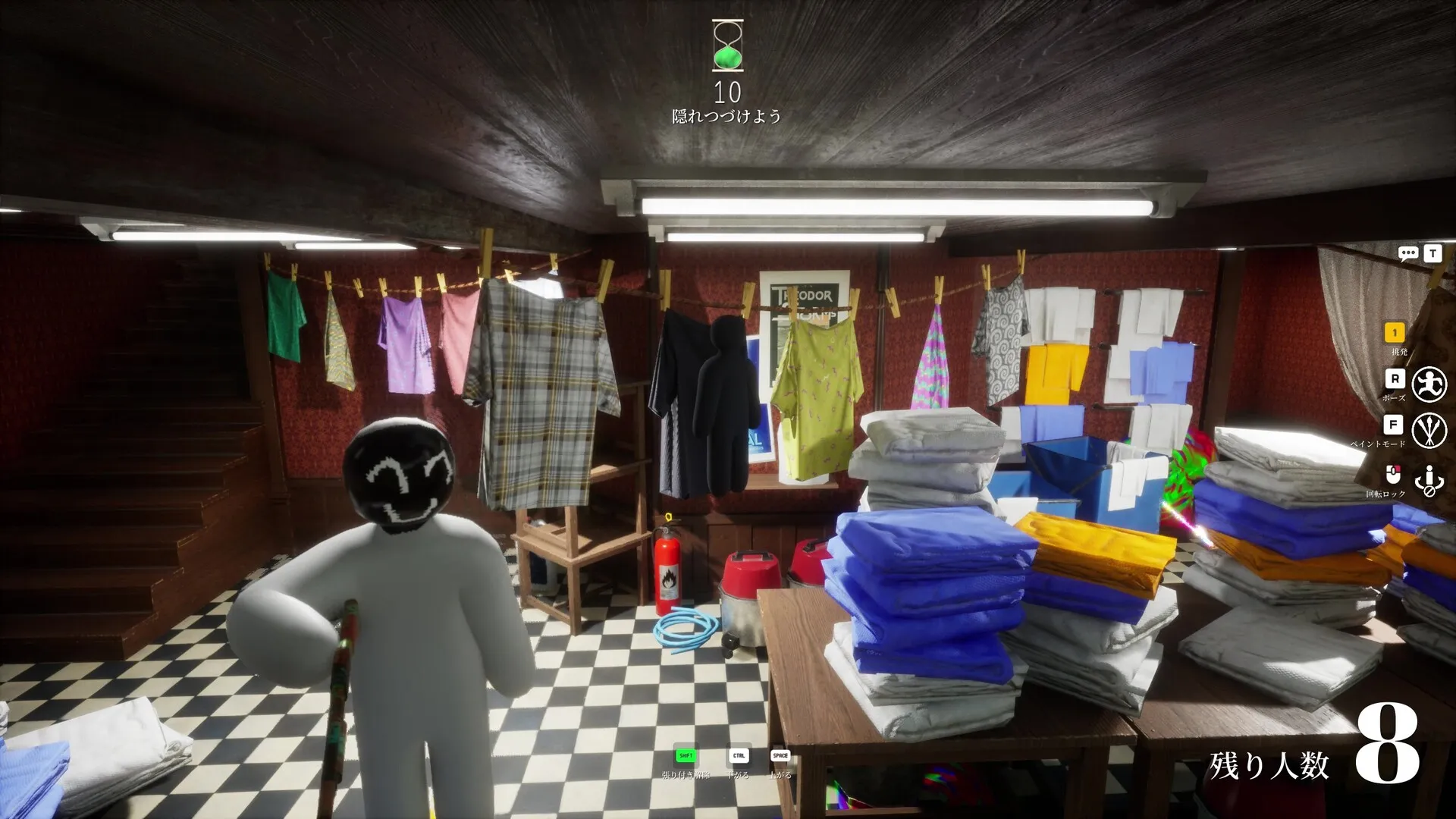
| Advanced | Replicate full patterns | Rebuild checkered floors, tile grids and picture frames so the texture lines up with the prop behind you. |
One rule holds at every tier: a slightly imperfect muted color in a good cluster can beat a perfect bright color out in the open. Spend prep budget sampling the cluster, not chasing one flawless swatch.
Frequently Asked Questions
What key opens the paint tool in Meccha Chameleon?
Paint mode opens with its own key — F by default — and is fully rebindable.
Why does my perfect color match still get spotted?
Usually finish, not hue. A glossy body shines wrong against a matte wall, so set the metallic and roughness sliders to match the surface you are imitating.
What is the fastest way to match a surface?
Use the eyedropper (3D Spoid) to sample the color straight from the environment, then fine-tune with the HSV/RGB sliders.