Meccha Chameleon Mods & Steam Workshop
Meccha Chameleon supports the Steam Workshop and ships with official modding tools, so community custom maps are the main mod content. This guide covers how to add Workshop maps to your lobby, how to install them without picking up a fake download, and the etiquette that keeps a social hide-and-seek game fair.
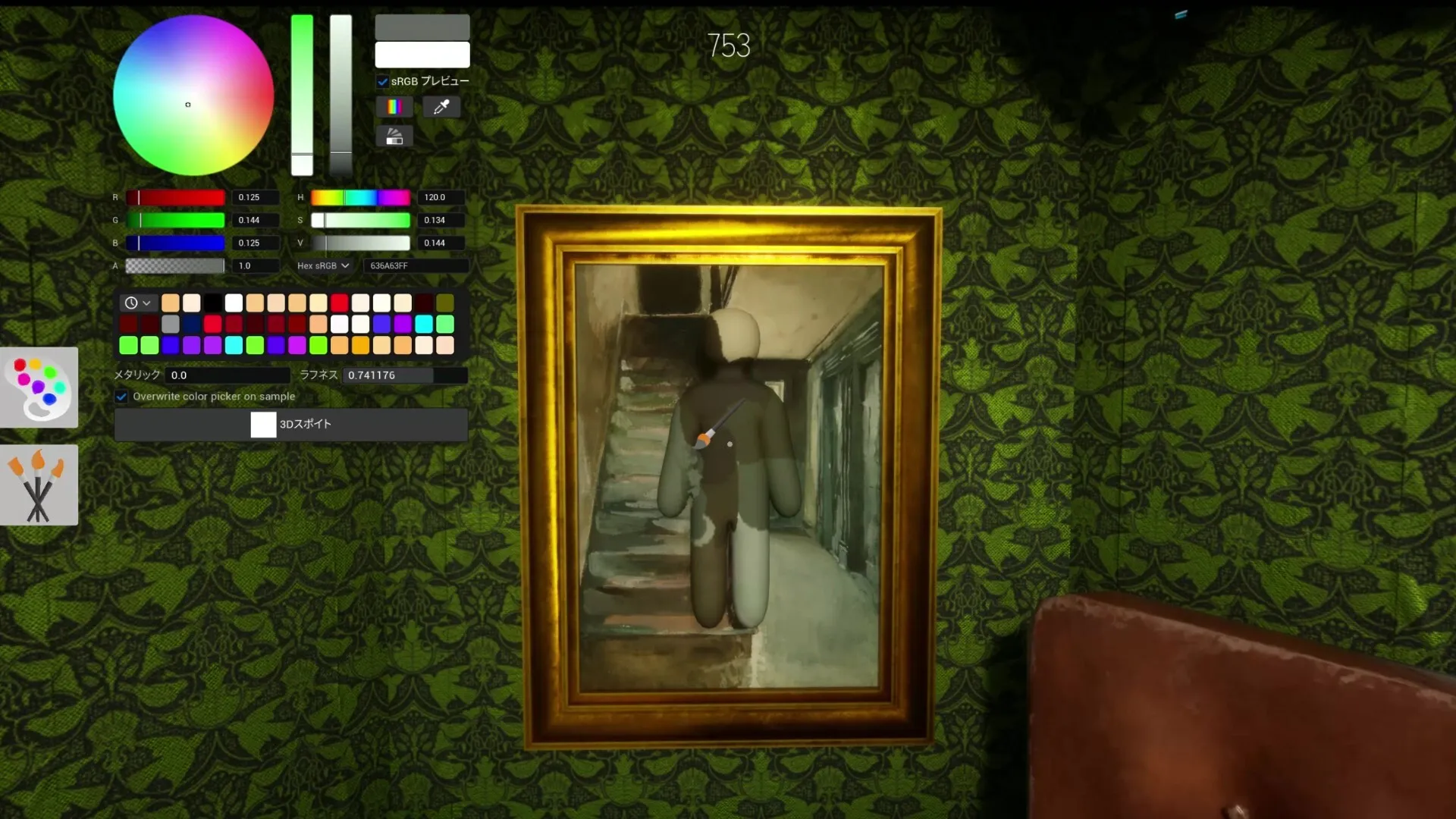
What Workshop support gives you
The game integrates with Steam Workshop (appid 4704690) and includes official modding tools. Community custom maps and stages are the headline content — there are now 35+ Workshop maps and the list is growing fast. Workshop map integration arrived in v1.2.0, and subscribed maps show up directly in the host’s map picker.
How to add a custom map
- Subscribe to the map on its Steam Workshop page and let Steam download it.
- Create or open a room as the host — Workshop maps appear in the map picker alongside the official stages.
- Only the host sets the map for the lobby; pick the Workshop map there before you launch the round.
Install mods safely
- Start from Steam-controlled surfaces only — Steam Workshop, the Community Hub and Steam News — which are easy to cross-check and show version compatibility.
- Avoid executables, login pages, browser extensions and any off-site account or file requests. Mod searches attract fake tool and download pages; skip anything asking for files outside Steam’s normal flow.
- Check a mod’s update date against the latest Steam news for compatibility.
- Keep a clean baseline: launch with no optional items, confirm rooms work, then add one item at a time. If a room problem appears after an install, remove the most recent item first.
Multiplayer etiquette
Because this is a social hide-and-seek game, any item that changes visibility, prop silhouettes, colors or room layout affects both sides. Make sure everyone in the session knows what’s installed — a mod that gives one player information others lack belongs outside public-room play. Streamers should test Workshop items before going live.