Meccha Chameleon Controls & Keybinds
Meccha Chameleon has 17 default keyboard & mouse keybinds. Every one of them is rebindable from Esc → Settings → Controls. There are no native per-action gamepad bindings published: the game supports controllers for menu navigation and the hunt phase, but the paint tool needs precise pointer input, so a mouse or trackpad is recommended. The full table below is the complete dataset — HUD hints and your in-game Settings screen override it if a patch moves a key.
| Move (forward / back / strafe) | W / A / S / D | Sprint to your hide spot before prep time ends; reposition for the disguise, then open menus. |
| Camera look | Mouse | Use low sensitivity so Seekers can inspect wall edges slowly. |
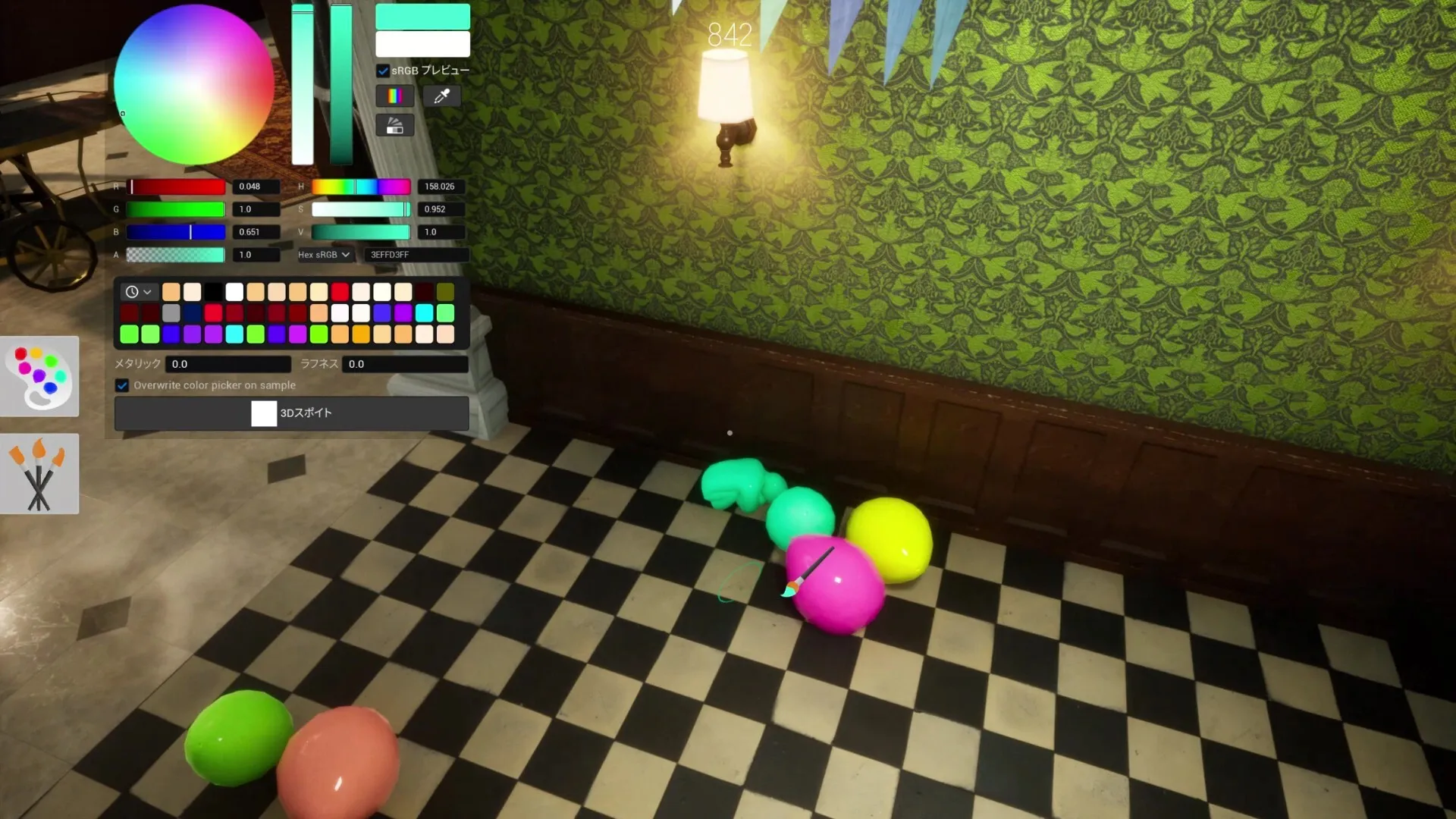
| Open paint menu | F | Opens palette, brushes, color wheel, RGB/HSV sliders, swatches, metallic/roughness, saved themes, and the 3D eyedropper. |
| Open pose menu | R | Choose stand, crouch, curl-into-ball, or wall-flattened pose. Set pose before final paint pass. |
| Eyedropper / sample color (Spoid) | Eyedropper tool inside paint menu | 3D eyedropper samples exact colors from walls, floors, props, and shadows. Sample the lit and shadow tones of the surface you will lean on. |
| Quick color pick from environment (in paint menu) | Spacebar (while paint menu is open) | Fast in-menu color pick from the surroundings. |
| Apply paint / select UI | Left mouse button | Brush strokes and menu clicks. |
| Rotate camera while painting | Middle mouse button | Sample distant surfaces and check your silhouette from the doorway angle before prep ends. |
| Seeker tag / attack | Left mouse button (aim at suspect shape, then interact) | Eliminate a disguised Hider; confirm a silhouette mismatch first. Do not spam tags. |
| Crouch / fast-fall | Ctrl (crouch key) | Seekers crouch to scan floor-flat hides; crouching mid-air drops you faster (movement tech on some maps). |
| Switch viewpoint (TPP / FPP) | View toggle (check HUD prompt) | Hiders paint in third-person (TPP) to see their full outline; Seekers scan in first-person (FPP) for shadow, gloss, and edge errors. |
| Release wall-stick pose | On-screen HUD prompt key | Detach after a wall-flatten pose so you can reposition. |
| Proximity voice chat | Voice input (proximity-based) | You hear only nearby players, not the whole lobby. Used to coordinate sweeps or lure opponents. |
| Text chat | Chat input (lobby and in-match where enabled) | Lobby and in-match text where the host enables it. |
| Spectator free camera | Free-fly camera (activates after elimination) | Fly the map after you are caught. |
| Whistle taunt | Taunt input (spectator mode) | Provoke Seekers or entertain stream viewers while spectating. |
| Open Settings / rebind keys | Esc -> Settings -> Controls | Full keybind list. Rebind one key at a time; use 'reset to defaults' if bindings feel wrong after a patch. Verify the paint (F) and pose (R) keys before a ranked match. |